We are currently releasing the Outlook Add-In for Velodoc. We have posted a quick video tour on YouTube. This video demonstrates how to send large files to email contacts using Memba Velodoc Outlook Add-In and various file transfer server platforms including Velodoc servers, FTP servers, UNC File Shares, Microsoft BITS Servers and Amazon S3.
You can also find the high-definition version of the video tour on Silverlight Streaming Services.
Memba Velodoc Outlook Add-In is open-source and you can download the code from:
Showing posts with label SMTP. Show all posts
Showing posts with label SMTP. Show all posts
Tuesday, May 13, 2008


Monday, March 31, 2008
Validating email notification HTML for Outlook 2007
Velodoc issues numerous email notifications. The presentation uses the latest CSS tags and sophisticated layered HTML. Everything worked fine in Outlook 2003 which uses Internet Explorer as the HTML rendering engine. Outlook 2007 and its Word 2007 rendering engine broke many little things.
Although it is definitely a step back in terms of HTML rendering capability for emails, everything is explained in Word 2007 HTML and CSS Rendering Capabilities in Outlook 2007. The article comes with a very handy tool to validate HTML and CSS in your development environment.
I have not been able to install the tool for Visual Studio 2005 SP1 on Windows Vista Ultimate x64 because I could not instantly find the registry keys described in the setup instructions, but it works perfectly with Dreamweaver 8 provided you replace "Dreamweaver MX 2004" by "Dreamweaver 8" in the default installation path.
Monday, July 30, 2007
Developing a quick and dirty bulk email infrastructure to clean your lists
If you want to send an email newsletter, I can only recommend you use:
- An email marketing software: http://email-marketing-software-review.toptenreviews.com
- Or preferably an email marketing service: http://email-marketing-service-review.toptenreviews.com
In our research for the ideal tool, we have found that services are weak on editing and layout and strong on reporting, whereas software is strong on editing and weak on opt-in/opt-out use cases and cleaning contact lists. There is no perfect tool. There is in my opinion an advantage to email marketing services because there is a workaround to their weaknesses which is to compose the newsletter in an HTML editing tool like Dreamweaver.
You may choose not to use these software and services, either to spare your marketing dollars or because you need specific features that these tools do not provide. In this case you will need to assess the following requirements and you will find that developing a bulk email infrastructure is no easy task:
- Editing and layout
- Contact list management
- Mail merge
- Bulk send performances
- Opt-in/opt-out use cases
- Cleaning contact list (email bounces)
- Reporting
In our case, we had to find a way to clean our contact list before considering a subscription to an email marketing service because their pricing is per contact and some contacts in our list were fairly old. To achieve that, we have spent a couple of days building a quick and dirty bulk email infrastructure comprising:
- An SMTP server with two mailboxes, newsletter@domain.tld and dsn@domain.tld, where the first one has an autoresponder;
- A bulk email tool including management of bouncing emails, which is only a GUI around devMail;
- An opt-in/opt-out web page;
- Integration with Google Analytics for reporting (not in the sample).
The process to build, send and analyse a newsletter is the following:
- Design the newsletter in Dreamweaver (use %%dbfield%% for mail merge)
- Check the newsletter against the SPAM checker of iContact using a trial account
- Open the newsletter in IE and save as web archive (*.MHT) with embedded images
- Open the MHT file in the bulk email tool (configured to use a specific database and SMTP server)
- Build the text version of the HTML newsletter
- Click send
- A few days later, open the tool and click Analyze to interpret delivery status notifications and tag bouncing emails
- Open the mailbox in Outlook to handle manually the notifications which could not be interpreted
You can download the source code here. This tool does not measure up with the software and services mentioned above, but it offers a convenient way to purge a contact list before subscribing to an email marketing service.
Friday, November 24, 2006
How to configure the IIS SMTP Service to send emails from ASP.NET code?
I have probably configured the IIS SMTP service a dozen times over the past five years but I still struggle with authentication and relay, so I have decided to write this note once and for all.
First, the source for your System.Net.Mail issues is definitely http://www.systemnetmail.com/, including some sample code.
Because we are all urged to deliver rapidly, I have provided a test application which you can download from http://www.velodoc.com/downloads/061124.blog.zip. Contrary to most samples that you will find on the Internet, this one uses a configuration file including system.net\mailSettings, which is probably the way you want to send emails from your ASP.NET code.
Obviously you need to install the SMTP Service, which is well explained at http://msdn2.microsoft.com/en-us/library/8b83ac7t.aspx.
Let’s say you need to send your emails from website@yourdomain.tld. In this case, it is recommended (but not required) that you rename the default domain into yourdomain.tld.
Display the default SMTP Virtual Server properties and on the Access tab:
- Configure authentication by removing Anonymous access and allowing Basic authentication and/or integrated Windows authentication;
- Grant relay to 127.0.0.1 and allow all computers which successfully authenticate to relay.
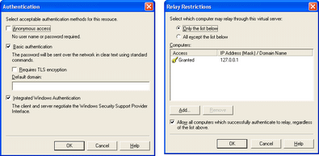 You can certainly be more restrictive depending on your requirements, once you got teh above configuration to work properly.
Finally, you can create a dedicated account and properly configure your settings:
<system.net><mailSettings>
<smtp deliveryMethod="Network" from="website@yourdomain.tld">
<network host="127.0.0.1" port="25" userName="DOMAIN\account" password="password"/>
</smtp>
</mailSettings>
</system.net>
Thursday, November 23, 2006
Troubleshooting SMTP using Telnet
Today, I have been confronted to configuring Virtuozzo + Plesk on our new VPS web site server to send emails from ASP.NET code.
On our old Plesk 7 server, we used to send emails from an email account which had no mailbox but the same configuration did not seem to work in the more recent Plesk 7.6. I am not a Plesk aficionado, so I went the old way to find out what was going wrong.
On our old Plesk 7 server, we used to send emails from an email account which had no mailbox but the same configuration did not seem to work in the more recent Plesk 7.6. I am not a Plesk aficionado, so I went the old way to find out what was going wrong.
- Open a command windows by typing cmd in the Start -> Run… dialog box and click OK.
- At the prompt, type telnet mail.yourdomain.tld 25 + Enter
- The mail server should display version information.
- Type HELO + Enter.
- Type AUTH LOGIN + Enter.
- Type your mailbox username or username@ yourdomain.tld encoded in base64 + Enter. ESMTP requires a login in the form username@ yourdomain.tld. A helpful site to get a base64 encoded value is http://www.motobit.com/util/base64-decoder-encoder.asp.
- Type your mailbox password encoded in base64 + Enter.
- If you have successfully authenticated, the server will reply "235 authenticated".
- Type MAIL FROM: username@ yourdomain.tld + Enter.
- Type RCPT TO: anothermailbox@ yourdomain.tld + Enter.
- Type DATA + Enter.
- Type Subject: Test + Enter + Enter (Send a blank line to separate the headers from the message body).
- Type SMTP test + Enter.
- Type . + Enter (a dot, then Enter).
- The server should reply "250 Message queued"
- Type QUIT + Enter.
- Close the command window and check your mailbox.
Subscribe to:
Posts (Atom)